Graph up to six functions
Enter equations in Y=, press GRAPH and each curve is drawn in its own color — Y1 blue, Y2 red and so on — with axis labels, a light grid, and clean handling of asymptotes and domain gaps.
Free · No download · Works on any device
Left your TI-84 at school? Open this page and you have one. Graph an equation, find where two lines cross, fit a regression or invert a matrix — right in your browser, with no emulator to install and no sign-up.
Start calculating ↓New to the TI-84? See how to use it in 5 steps ↓
About
The TI-84 Plus and TI-84 Plus CE are the graphing calculators you will find in most algebra, precalculus, calculus and statistics classrooms. Plenty of people need one when they do not have it with them: you are doing homework on the sofa, checking an answer on the bus, learning the keys before you buy, or a teacher wants to share a graph with a class without handing out hardware.
That is what this page is for. The layout follows the TI-84 Plus CE (opens in a new tab) : same keys, same Y=, WINDOW, ZOOM, TRACE and GRAPH row, same 2nd and ALPHA labels. If you already know the handheld, your fingers will find everything. If you do not, the five-step guide and key guide below get you going in a couple of minutes.
We are upfront about one thing: this is an independent TI-84-style calculator, not a copy of Texas Instruments' firmware. It does not run TI's operating system, which is exactly why it opens instantly and needs no ROM files or downloads. If you specifically need the genuine software, Texas Instruments offers an official TI-84 Plus CE online calculator (opens in a new tab) . If you want a free, quick, no-setup TI-84 you can open on any device, you are in the right place. There is also a full-size version that opens in its own tab and fits your screen.
nDeriv(, fnInt(, solve(Last updated November 2026.
Features
The tools students use every day, redesigned to be faster and easier to read than a handheld screen.
Enter equations in Y=, press GRAPH and each curve is drawn in its own color — Y1 blue, Y2 red and so on — with axis labels, a light grid, and clean handling of asymptotes and domain gaps.
TRACE walks along any curve. 2nd + TRACE opens CALC: zeros, minimums, maximums, intersections, the derivative at a point, a function value, or the shaded area under a curve.
Correct order of operations, Ans, variables A–Z, STO▸, ▶Frac, nCr, nPr, factorials, logs, trig and inverse trig, scientific notation, a scrolling history and ENTRY recall.
Type data into L1–L6, then run 1-Var or 2-Var Stats and linear, quadratic, cubic, quartic, ln, exponential or power regression. One key press graphs the fitted curve over your points.
Matrices [A]–[J] with an editor, determinant, inverse, transpose, row reduction and products,
plus matrix powers and element access like [A](1,2).
normalcdf, invNorm, tcdf, binompdf, binomcdf, poissonpdf and more from the DISTR menu; nDeriv(,
fnInt(, fMin( and solve( from MATH.
Build an X/Y table with TBLSET, set Xmin–Yscl in WINDOW, or jump with ZStandard, ZTrig, ZSquare, ZDecimal, ZInteger, ZoomStat and ZoomFit.
Resize with − and +, flip between horizontal and vertical, or press Fit to screen. The full-size page picks the best layout for phones, tablets and laptops automatically.
Copy a link that reopens your exact graph. Equations, lists and settings are saved only in your own browser — nothing is uploaded.
Try it
Each one uses real key presses and gives a result you can check. Where it helps, load the graph straight into the calculator above.
Example 1
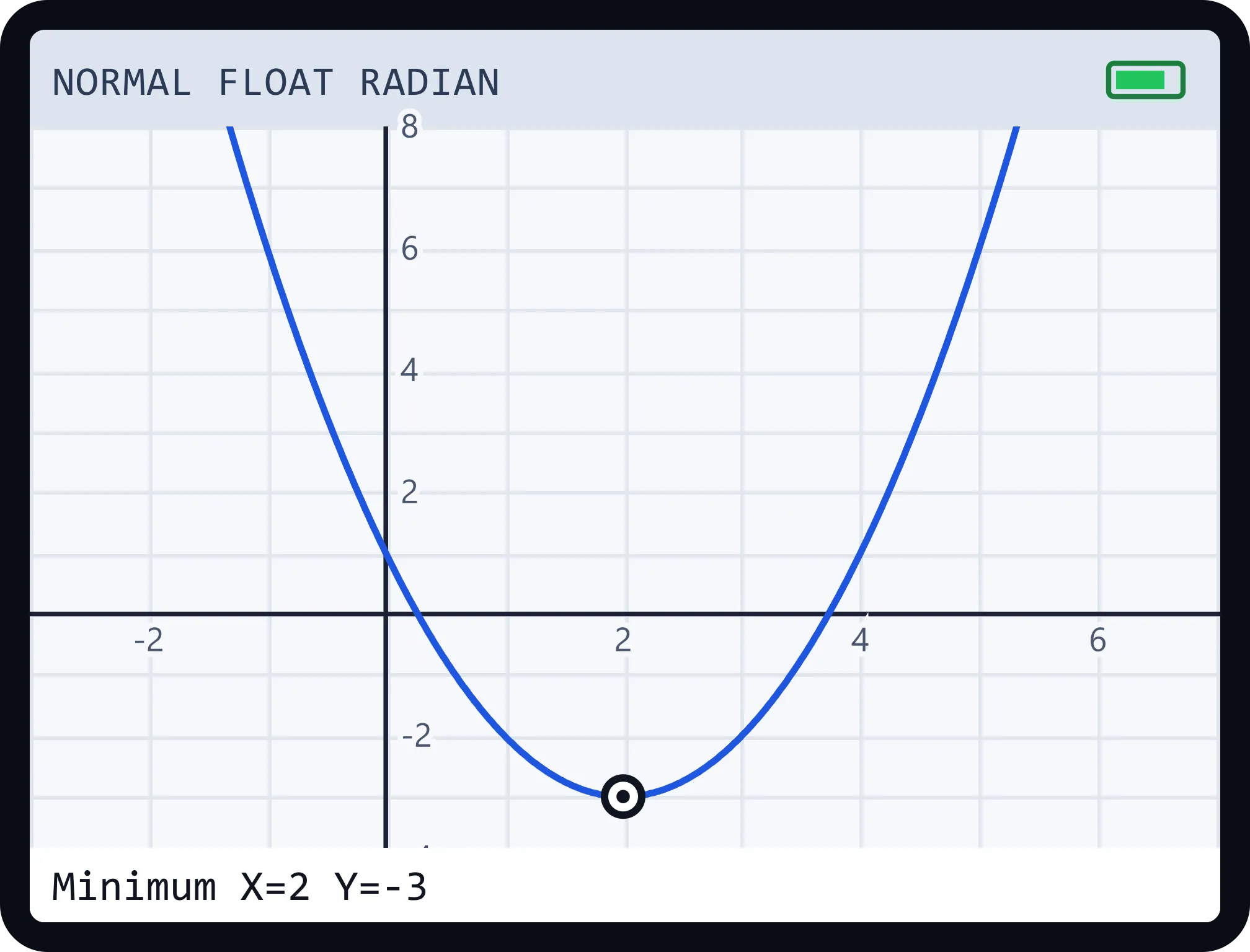
Y= → type X²−4X+1 → GRAPH → 2nd + TRACE → minimum
The calculator reports the vertex at X = 2, Y = −3.
Example 2
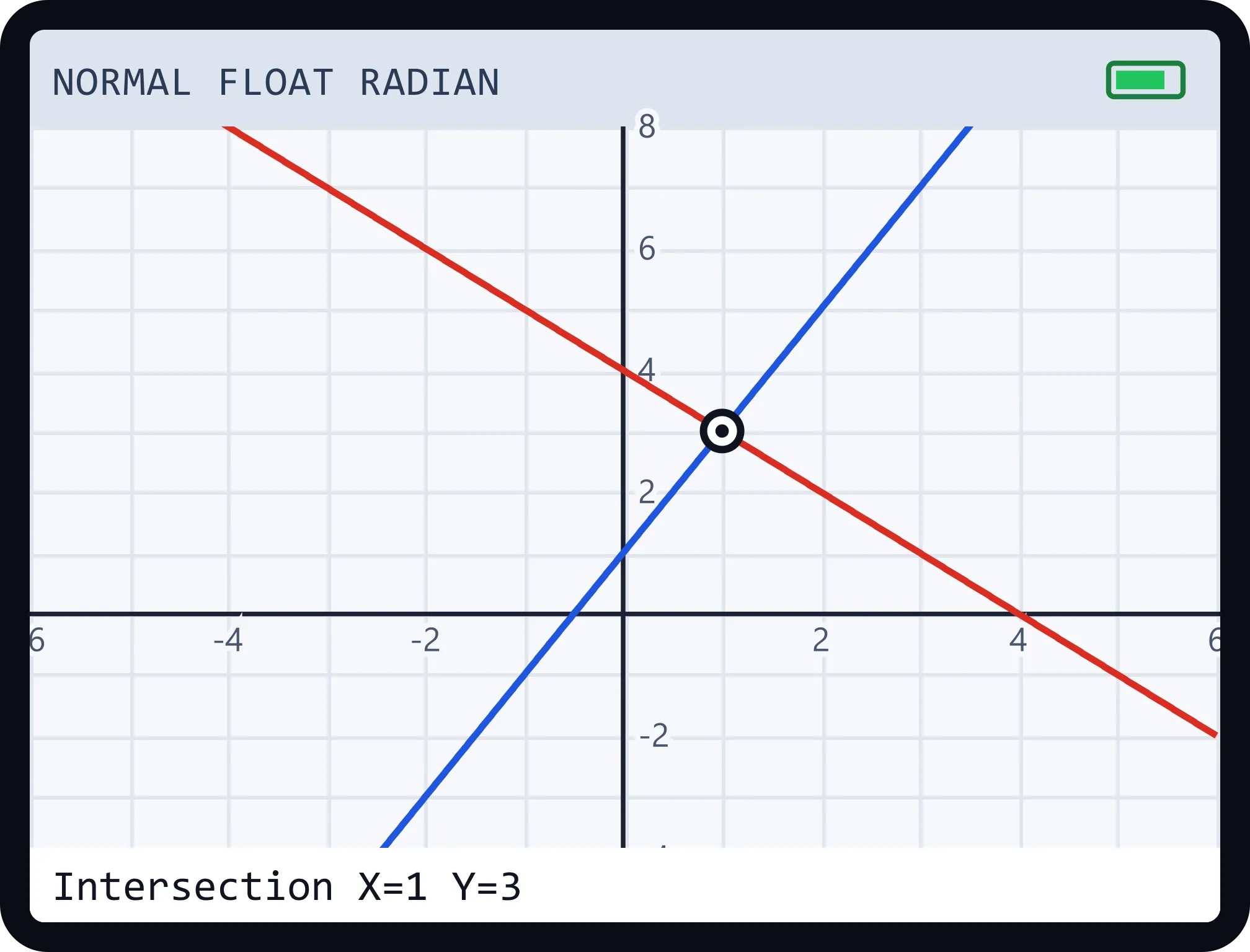
Y1 = 2X+1, Y2 = −X+4 → GRAPH → 2nd + TRACE → intersect
They meet at (1, 3). That is the solution of the system y = 2x + 1, y = −x + 4.
Example 3
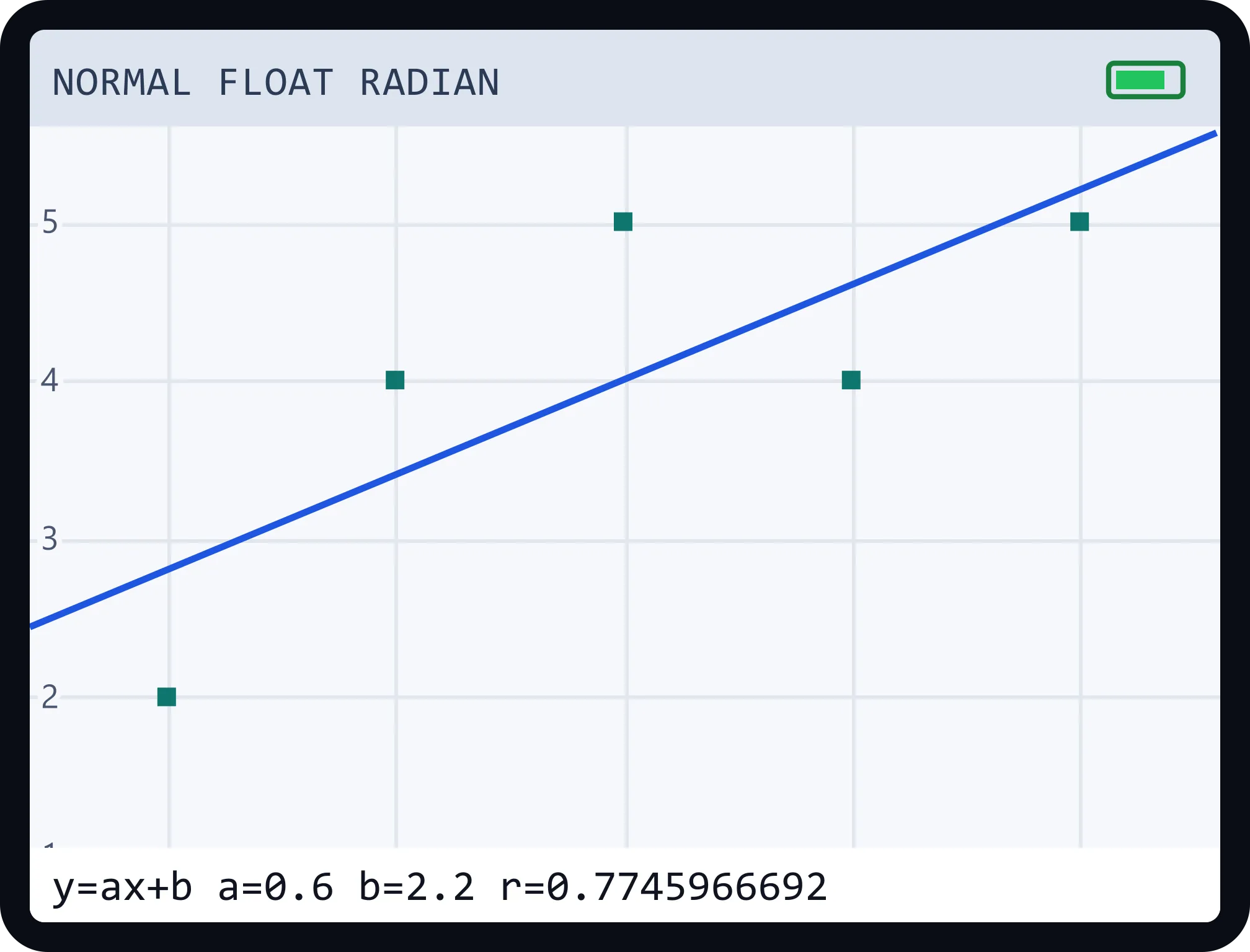
STAT → Edit: L1 = 1,2,3,4,5 and L2 = 2,4,5,4,5 → STAT → CALC → LinReg(ax+b) → ENTER
y = 0.6x + 2.2 with r ≈ 0.775. ENTER on the results graphs the line over the points.
Example 4
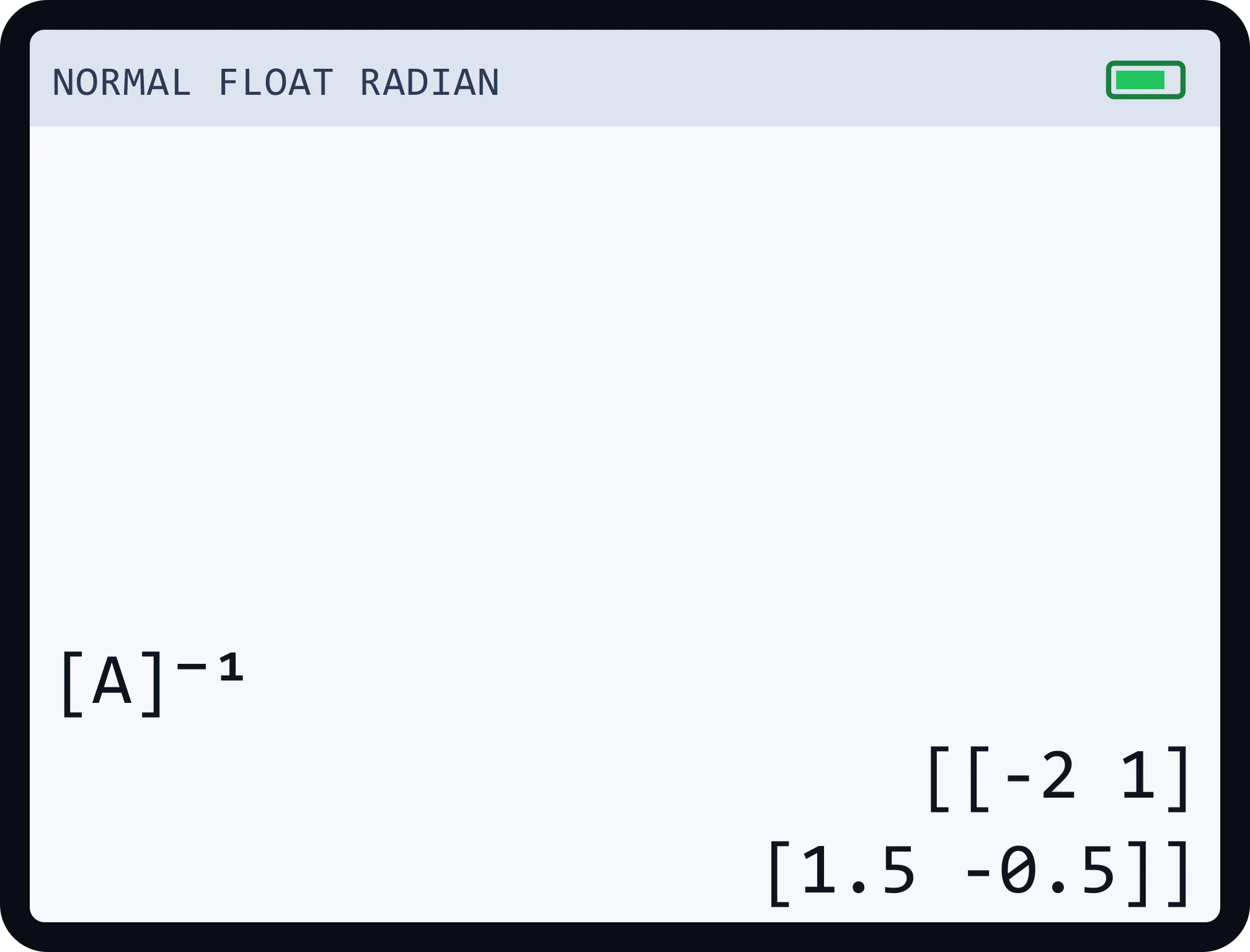
2nd + x⁻¹ → EDIT → [A] → size 2×2, entries 1, 2, 3, 4 → QUIT → [A] x⁻¹ → ENTER
The determinant is −2 and the inverse is [[−2, 1], [1.5, −0.5]].
Example 5
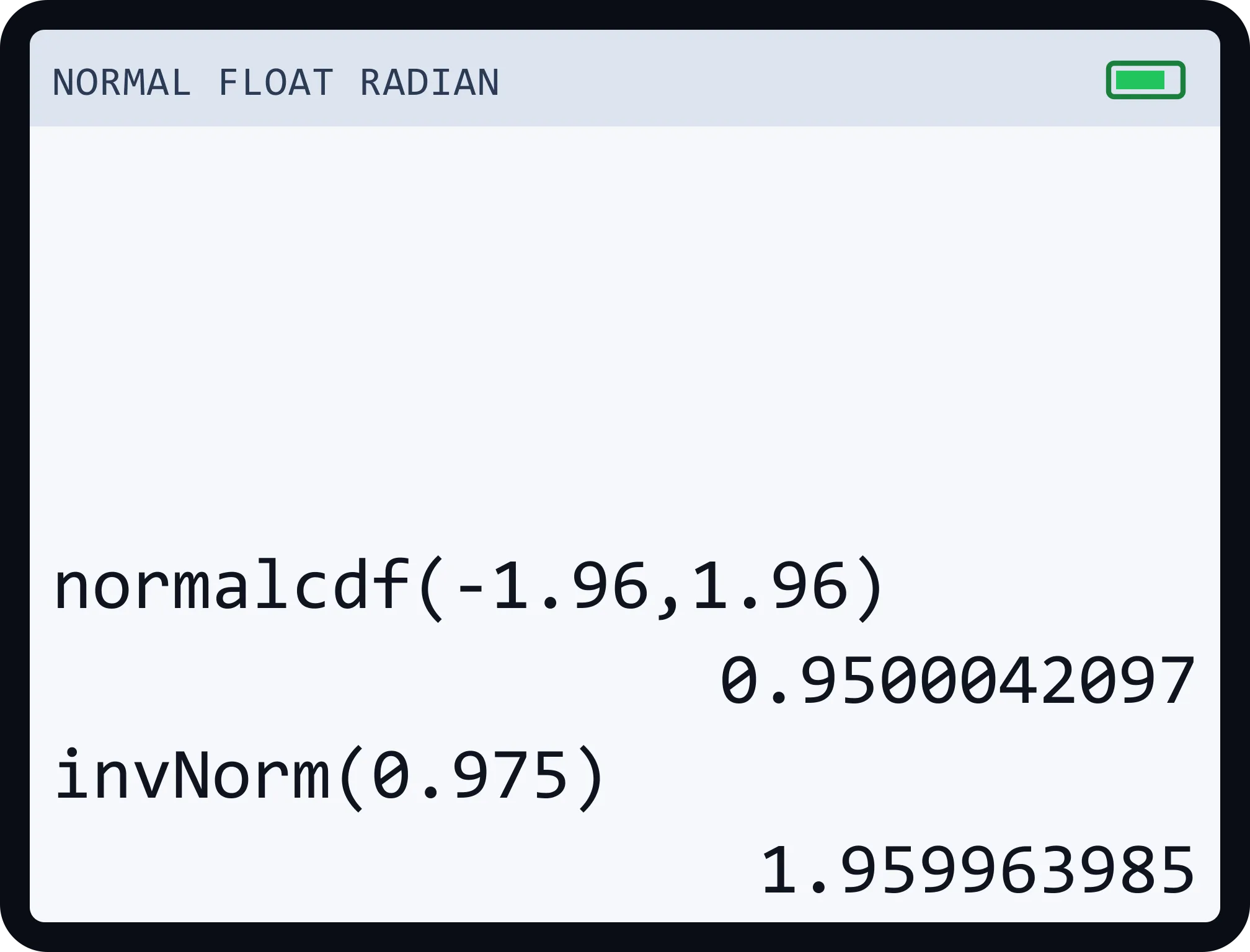
2nd + VARS → normalcdf( → −1.96, 1.96 → ENTER
About 0.95: roughly 95% of a normal distribution lies within 1.96 standard deviations of the mean.
Example 6
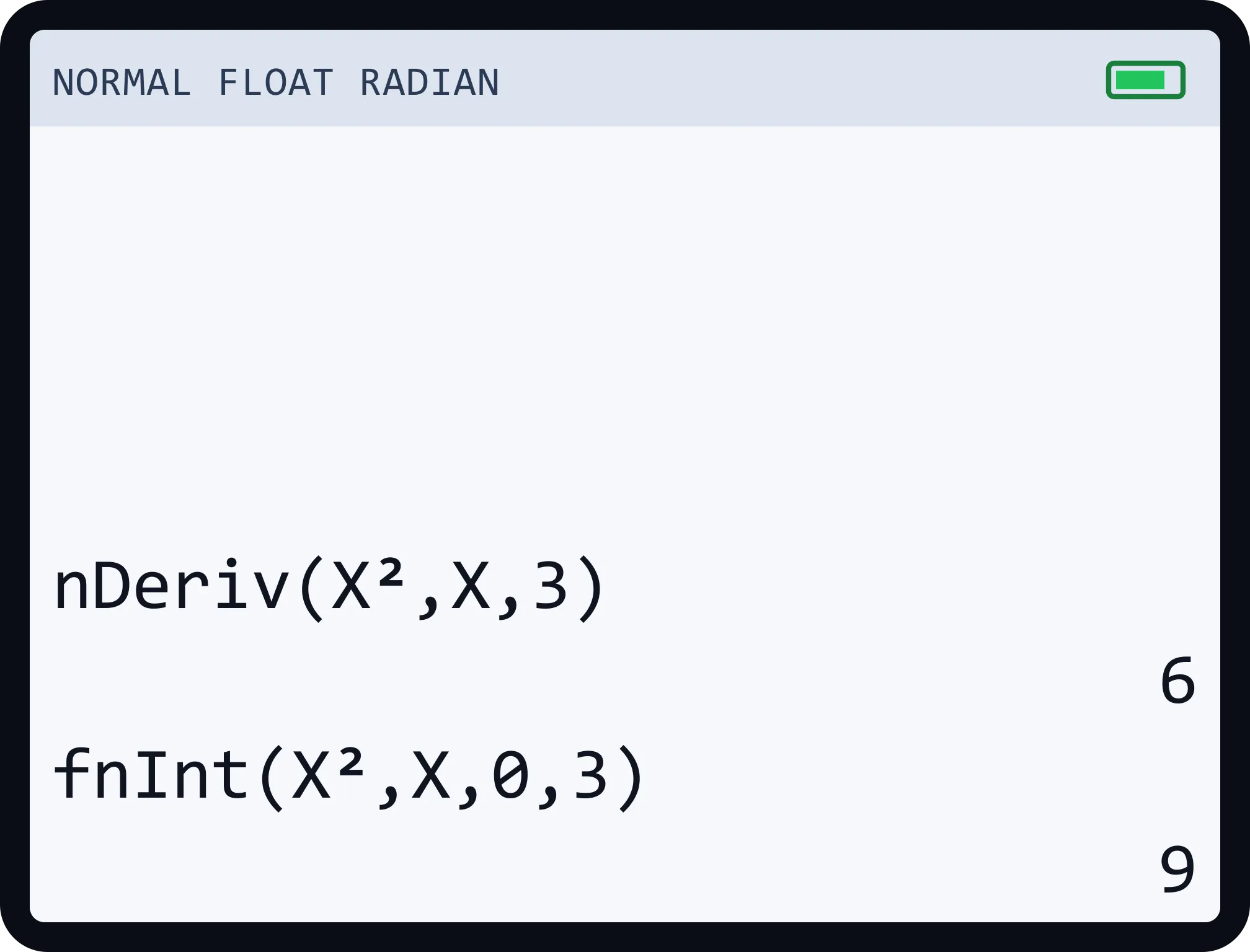
MATH → nDeriv(X², X, 3) → ENTER; then MATH → fnInt(X², X, 0, 3) → ENTER
The slope of x² at x = 3 is 6, and the area under x² from 0 to 3 is 9.
Getting started
Five steps from your first calculation to finding where a curve crosses the axis.
Type an expression and press ENTER. Try 2 ( 3 + 4 ) x² to get 98. Start a new line with +, × or ÷ to continue from the last answer.
Press Y=, enter X,T,θ,n x² − 4, then press GRAPH. Add more equations on Y2–Y6 to compare curves. For the full walkthrough and fixes for a blank graph, read how to graph a function on a TI-84.
Press ZOOM and choose a preset such as ZStandard or ZoomFit (press the number shown next to it), or press WINDOW to type exact bounds.
Press TRACE and use ◀ ▶ to move along the curve. For exact answers press 2nd + TRACE and choose zero, minimum, maximum, intersect, dy/dx or ∫f(x)dx.
Press MODE to change between Radian and Degree. Press 2nd + GRAPH to see a table of values.
Reference
What each key does on this calculator, and the keyboard shortcut for it.
| Key | What it does | Keyboard |
|---|---|---|
| Y= | Enter up to six equations (Y1–Y6). Left of the “=” toggles a graph on or off. | Type with X,T,θ,n |
| WINDOW | Set Xmin, Xmax, Xscl, Ymin, Ymax and Yscl. | Type a value, press ENTER |
| ZOOM | Presets: ZStandard, ZTrig, ZSquare, ZDecimal, ZInteger, ZoomStat, ZoomFit, Zoom In and Out. | Number keys pick an item |
| TRACE | Move along a curve with ◀ ▶; ▲ ▼ switch curves. Type a number to jump to that X. | Arrow keys |
| GRAPH | Draw every enabled equation. | |
| 2nd | Activates the blue label above a key, e.g. 2nd + TRACE = CALC. | |
| ALPHA | Activates the green letter above a key (A–Z). 2nd + ALPHA locks it. | Letters type automatically |
| MODE | Choose Normal/Sci, Float/Fix decimals and Radian/Degree. | |
| MATH | Menus for ▶Frac, ▶Dec, abs, round, nCr, nPr, nDeriv, fnInt, solve( and more. 2nd + MATH is TEST (=, ≠, <, and, or). | |
| STAT | Edit lists L1–L6, run 1-Var / 2-Var Stats and regressions. 2nd + Y= sets up STAT PLOT; 2nd + STAT is the LIST menu. | |
| 2nd + x⁻¹ | MATRIX: build [A]–[J], then use det(, ᵀ, rref(, products and inverses. | |
| 2nd + VARS | DISTR: normalcdf, invNorm, tcdf, binompdf, poissonpdf and more. | |
| 2nd + 0 | CATALOG: every function and command in one list. | |
| STO▸ | Store a result in a variable: 5 STO▸ ALPHA A. | Type 5→A |
| ENTER / ENTRY | ENTER calculates. 2nd + ENTER brings back the last entry; ▲ steps through history. | Enter / ▲ |
| CLEAR / DEL | CLEAR empties the line (twice to clear the screen). DEL removes one character. | Esc / Backspace |
Tip: click the calculator once, then type. Numbers, + − * / ^ ( ),
Enter, Backspace, Esc and the arrow keys all work. Typing sin(,
ln( or pi is understood too. Prefer a bigger view? Open the full-size calculator.
Compare
Which handheld is which, and where this online calculator fits.
| TI-83 Plus | TI-84 Plus | TI-84 Plus CE | |
|---|---|---|---|
| Display | Monochrome | Monochrome | High-resolution color |
| Graph colors | No | No | Each function in its own color |
| Power | AAA batteries | AAA batteries | Rechargeable battery |
| Design | Original layout | Faster, more memory | Slimmer, Python edition available |
The TI-83 and TI-84 share almost the same keys and menus, so skills transfer directly, and a tutorial written for one usually works on the other. This online calculator follows the TI-84 Plus CE layout and color-coded graphs. For the official specifications of each model, see Texas Instruments' TI-84 Plus CE page (opens in a new tab) , including the Python edition (opens in a new tab) . For a fuller breakdown read TI-84 Plus vs TI-84 Plus CE and TI-83 vs TI-84.
Test day
An online calculator is a great way to practise, but a website is not an approved device for a proctored test. Bring a physical calculator that is on the official list, and learn its keys now so test day is calm.
Policies get updated, so treat this page as a pointer, not the rulebook: open the official pages above before test day. Not sure whether your calculator counts as scientific or graphing? See is a TI-84 a scientific calculator? And if you ever need to wipe a real calculator before an exam, here is how to reset a TI-84 Plus.
Use cases
Graph lines, parabolas and exponentials, find intercepts, and solve equations by seeing where curves meet.
Check limits visually, evaluate derivatives at a point with nDeriv and shade the area under a curve with ∫f(x)dx.
Enter data in lists, run 1-Var Stats and regressions, and use normalcdf or binompdf for probabilities.
Switch between degrees and radians, use ZTrig for waves, and use scientific notation, logs and exponentials for lab work.
Guides
Short, tested tutorials for the TI-84 Plus and TI-84 Plus CE. Every step also works in the calculator above.
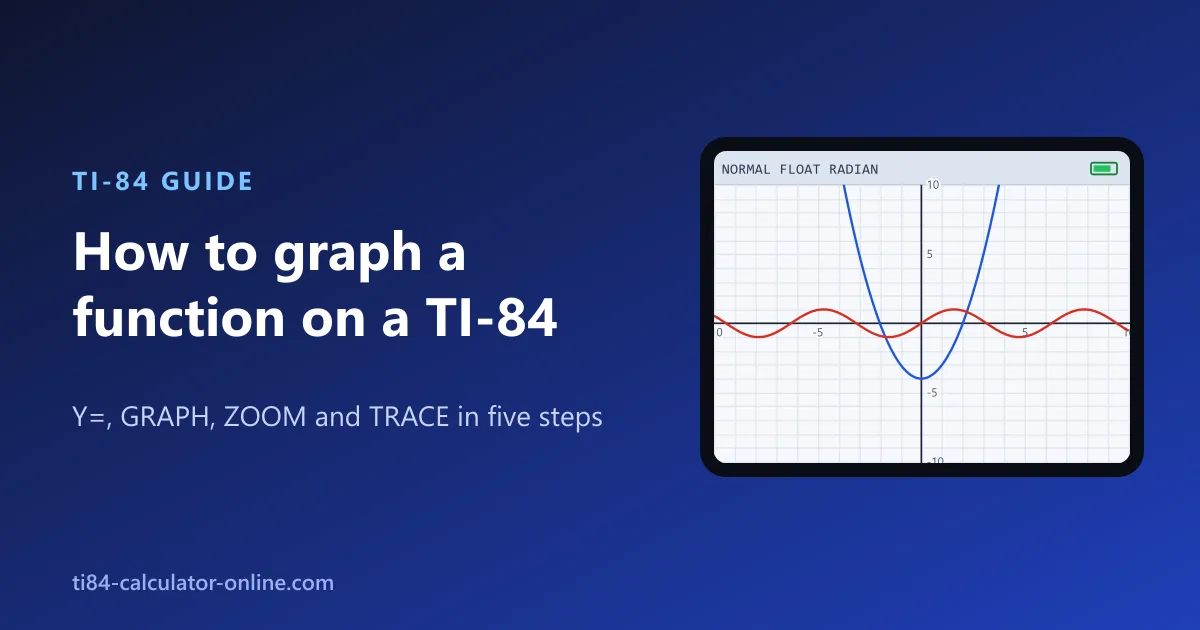 How to graph a function on a TI-84 Graph any function on a TI-84 in five steps with Y=, GRAPH, ZOOM and TRACE, plus fixes for a blank graph, syntax errors and a view that cuts off the curve.
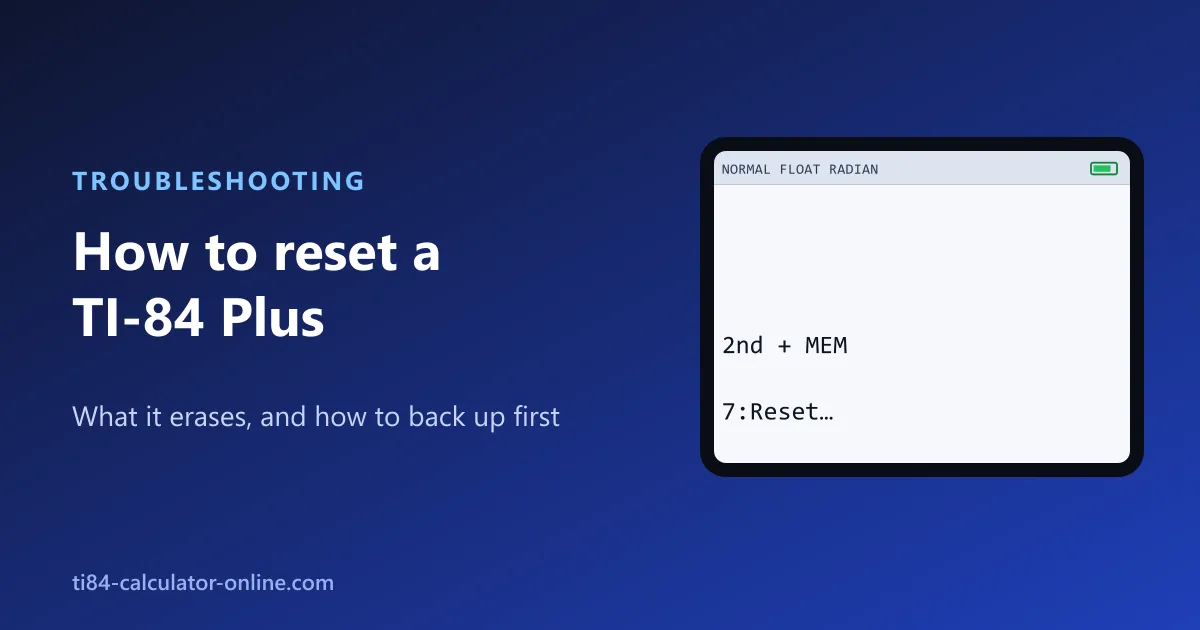 How to reset a TI-84 Plus (and what it erases) Reset a TI-84 Plus to factory defaults with 2nd + MEM. Learn what a RAM reset erases, how to back up first, and gentler options like clearing lists or defaults.
 Is a TI-84 a scientific calculator? A TI-84 does everything a scientific calculator does, and graphs too. See which scientific functions it has, how to use them, and what it means for exams.
 TI-83 vs TI-84: what actually changed? The TI-83 Plus and TI-84 Plus share almost every key and menu. See what the TI-84 adds, what stays the same, and whether tutorials for one work on the other.
 TI-84 Plus vs TI-84 Plus CE: which one do you need? The TI-84 Plus and TI-84 Plus CE do the same math. Here is what really differs, the screen, battery and speed, and which one makes sense for your class.
Roadmap
Dedicated calculators for the topics students search for most. Each one will open on its own page with steps and examples.
Trig, logs, exponents, fractions and scientific notation in one clean screen.
Multiply, invert and take determinants of matrices with step-by-step output.
Solve linear systems and see the graph where the lines meet.
Differentiate and integrate functions, with the area shaded on a graph.
Fit a line to your data and get the equation, r and r².
Binomial and normal distributions with the shaded probability curve.
Mean, median, standard deviation, z-scores and t-statistics.
FAQ
No, and we would rather say so plainly. This is an independent calculator built for the browser that follows the TI-84 Plus CE's keys, menus and screens (Y=, WINDOW, ZOOM, TRACE, GRAPH, TABLE, STAT, MATRIX and more). It does not run Texas Instruments' operating system or ROM, which is why it loads instantly and needs nothing installed. If you need the genuine firmware, Texas Instruments offers an official TI-84 Plus CE online calculator (opens in a new tab) .
Yes. There is no account, no sign-up and nothing to download. It runs entirely in your browser, and your equations, lists and settings are saved only on your own device.
Press Y= and type your equation with the X,T,θ,n key (for example X²−4), then press GRAPH. Use ZOOM to change the view, TRACE with the arrow keys to move along the curve, and 2nd then TRACE (CALC) to find zeros, minimums, maximums, intersections, derivatives and integrals. The step-by-step guide above walks through it, and how to graph a function on a TI-84 covers the common problems.
Solve each equation for y and enter them as Y1 and Y2, press GRAPH, then press 2nd + TRACE and choose intersect. The point where the lines cross is the solution. For bigger systems, put the augmented matrix in [A] and run rref([A]) from the MATRIX menu.
Press 2nd then x⁻¹ (MATRIX), move to EDIT, pick [A], set its size and fill in the entries, then do the same for [B]. Back on the home screen build [A] × [B] with the MATRIX NAMES menu and press ENTER. The number of columns in A must equal the number of rows in B, otherwise you will see a dimension error.
Press STAT, choose Edit, and type your x-values in L1 and y-values in L2. Press STAT again, move right to CALC, choose LinReg(ax+b) and confirm the lists. You get a, b, r and r². Press ENTER on the results screen and this calculator stores the equation in Y1 and graphs it over your data points.
Yes. Click the calculator once, then type numbers and operators. Enter calculates, Backspace deletes, Esc clears and the arrow keys move the cursor. Typing sin( cos( tan( ln( log( or pi works too.
Yes. The keys are sized for touch and respond instantly; press and hold the arrows or DEL to repeat. Use the − and + buttons to resize, Horizontal or Vertical to rotate the layout, and Fit to screen to reset. For a bigger version open the full-size calculator in its own tab.
Press MODE, use the down arrow to reach the Radian / Degree row, then press the left or right arrow to choose. Press 2nd then MODE (QUIT) to go back to the home screen. All trigonometry, including inverse trig, follows that setting.
The TI-84 Plus has a monochrome screen and uses AAA batteries. The TI-84 Plus CE is slimmer, has a color display and a rechargeable battery, and draws each function in its own color. Texas Instruments also offers a Python edition of the CE (opens in a new tab) . This calculator follows the CE layout, including the color-coded graphs. Texas Instruments' TI-84 Plus CE page (opens in a new tab) lists the official specifications, and our TI-84 Plus vs TI-84 Plus CE guide compares them side by side.
Mostly, yes. The TI-83 Plus and TI-84 share nearly the same keys and menus, so a tutorial written for one usually works on the other. The TI-84 family simply has more memory and is faster. See TI-83 vs TI-84 for the details.
It does everything a scientific calculator does (trig, logs, exponents, fractions, scientific notation) and adds graphing, tables, matrices and statistics. If an exam allows only scientific calculators, a graphing model usually is not permitted, so check the rules before you bring one. More in is a TI-84 a scientific calculator?
No. Websites are not approved devices for proctored tests. The College Board's SAT calculator policy (opens in a new tab) lets you bring an approved calculator without a computer algebra system (CAS), and the digital SAT also includes a built-in Desmos calculator. The ACT calculator policy (opens in a new tab) allows TI-84 Plus family models but bans CAS models such as the TI-89 and TI-Nspire CAS. Policies change, so check the current official page before test day. Use this site for homework, practice and learning the keys.
On a real TI-84 Plus, press 2nd then + (MEM), choose 7:Reset…, then 1:All RAM… and 2:Reset. That erases programs and stored data, so back up first. On this site, press the Reset button under the calculator. The full walkthrough is in how to reset a TI-84 Plus .
Not yet. Games and programs are written for the handheld’s own operating system, which this site does not run, and program support (PRGM) has not been built. Everything else on the home screen, graph screen, lists, matrices and STAT menus works.
Your equations, window, lists and settings are remembered in your browser automatically. Press Copy graph link to get a URL that opens the same graph for anyone you send it to.
Home-screen math with history, Ans and variables; lists L1–L6 with a list editor; matrices [A]–[J] (determinant, inverse, transpose, rref and products); STAT with 1-Var Stats, 2-Var Stats and linear, quadratic, cubic, quartic, ln, exponential and power regression; STAT PLOT scatter and line plots; the DISTR menu (normal, t, chi-square, binomial, Poisson, geometric); fMin, fMax, nDeriv, fnInt and solve(; comparison and logic operators; Y= with six colored functions; WINDOW, ZOOM, TRACE and the CALC menu; tables; MODE and FORMAT; and DRAW commands. Programs (PRGM), apps and complex numbers are not available yet.
Your free TI-84 calculator is one click away — no installs, no sign-up.
Open the calculator